Turn Claude into your custom clipping agent.
Your agent finds the moments worth sharing, cuts the clips, and hands you an audio page that's ready to play.
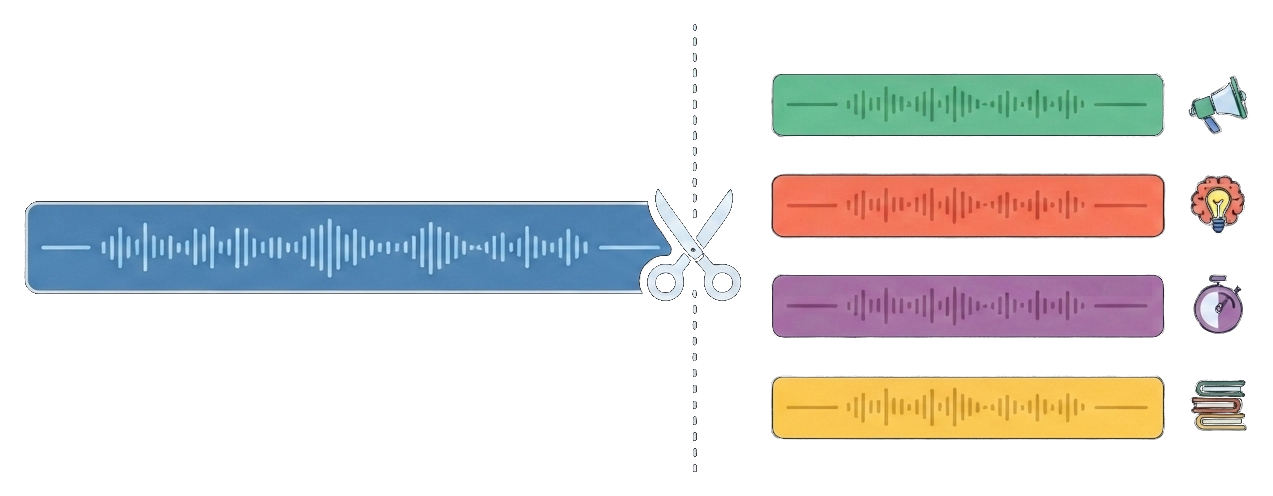
Just connect Claude to Audiogram, then paste the example prompt
This gives Claude the ability to find and edit podcast audio, effortlessly creating your clips.
Open Connectors in your Claude settings
In Claude on the web, click your initials in the bottom-left corner and choose Settings. Then open the Connectors section.
Add a custom connector
Scroll to the bottom of the Connectors screen and click Add custom connector. The button sits below the built-in connectors list.
Paste the Audiogram server URL
Name it Audiogram and paste this as the remote MCP server URL, then click Add.
Connect and sign in with Google
Click Connect on the new Audiogram card. A window opens on our sign-in page: continue with Google and approve access. If you're new, this creates your free Audiogram account on the spot.
Start a new chat and paste the example prompt
In a new chat paste in the example prompt below, swapping in the podcast you want to promote.
Cut social media clips from the latest episode of PODCAST NAME, delivered as a shareable clip page.

Use Audiogram to:
1. Find the episode on Apple Podcasts and retrieve its transcript.
2. Choose five short moments (15 to 45 seconds each) that work as standalone posts: strong hooks, bold opinions, surprising facts, or useful tips. Each must make sense with zero context.
3. Create a clip page with upsert_clip_page. Use verbatim 6 to 15 word start and end quotes copied exactly from the transcript. Title the page after the episode and write the intro as a one-line summary for whoever schedules the posts.
4. For each clip, set the title to a scroll-stopping hook of under 10 words and the note to a suggested caption with two or three relevant hashtags.
5. If any clip is rejected, fix the quotes and update the page with its page_id.

Then reply in chat with the page link and a suggested posting order for the week.
Start with your latest episode.
Connect Audiogram to a supported agent, paste the prompt, and sit back and enjoy the clips.